Getting Thunderbird
Thunderbird is a free email software by the Mozilla company (the same people who brought you Firefox). To download Thunderbird for free, visit their website at: http://www.mozilla.org/en-US/thunderbird/
You will also need to have it installed before continuing.
Before You Begin
You should already have an email address that has been created for you in your website control panel. If you do not know how to do this, send us a support Ticket and request for an email address. If your domain is "peterandsons.com", you can request for an email address like contact@peterandsons.com.
For this example, we will use test@themalaysian.com
You will need the following information ready:
- Username: your full email address
- Password: your email account password
- Incoming Mailserver: mail.yourdomain.com (eg: mail.themalaysian.com)
- Outgoing Mailserver: mail.yourdomain.com (eg: mail.themalaysian.com)
Getting Started
1) Inside of Thunderbird, click on Tools
2) Click on Account Settings
3) A small window will appear, click on the Account Actions button on the bottom left corner
4) Click on Add Mail Account
5) Fill in your first name, last name & email address
6) Tick the Remember Password box
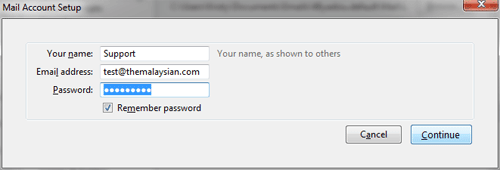
7) Thunderbird will try to detect your settings, wait for it to complete
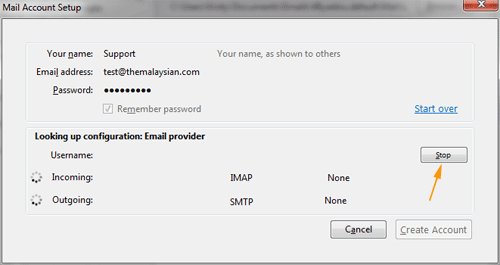
8) Click the EDIT button on the right (if it does not appear, please wait - the STOP button will change to the EDIT button when ready)
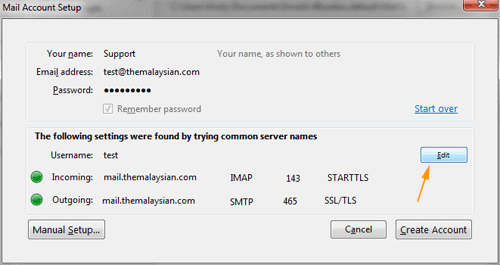
9) Ensure your email settings are as follows:
- Change your Username to you FULL email address (example: jane@janepartners.com)
- Incoming mail server is POP (instead of IMAP) and the port is 110
- Outgoing mail server is SMTP and the port is 58
- Change from "SSL/TLS" to NONE.
10) Double check your settings to make sure you've covered all 5 items as below
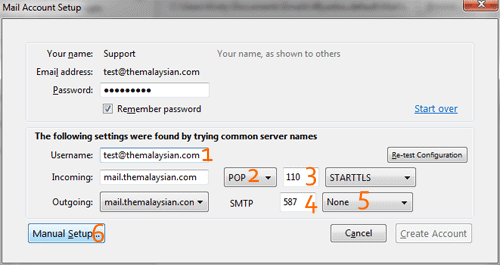
11) Click on the MANUAL SETUP button on the bottom left
12) Click OK
13) Click the Get Mail button to check your email for the first time!